

Problem
What this replaces on site
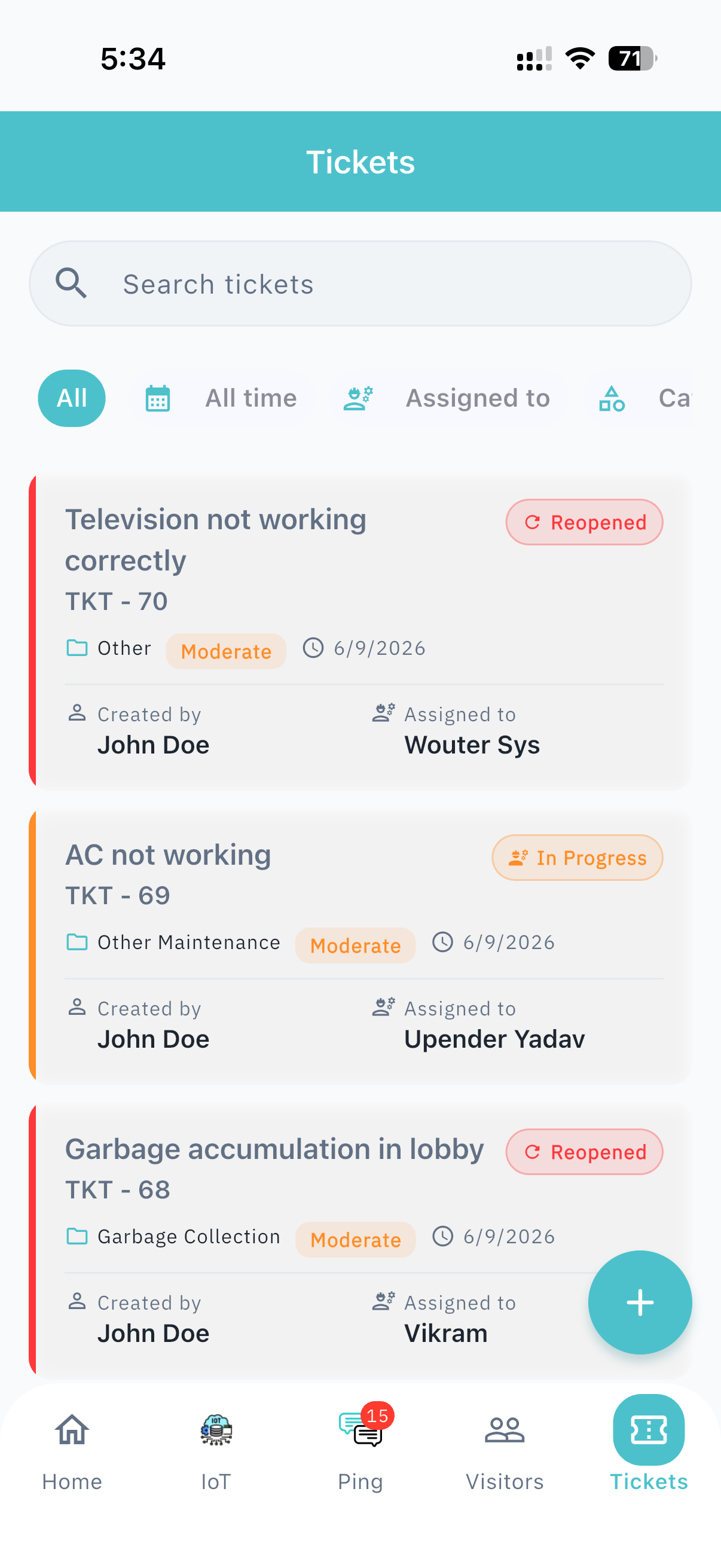
Most facilities treat a ticket as a mailbox. Someone assigns it, someone marks it closed, and the next failure starts from zero — no asset, no last spare, no photo, no SLA anyone can defend.
Who uses it
The people on this module
-
Residents, employees, guards
Raise work from the app, the desk, or a patrol exception.
-
Facility admin
Confirms asset, location, and history — or lets the system attach them.
-
Technicians and vendors
Act on the phone and leave evidence on the job.
-
Facility / property manager
Sees SLA, owner, and outcome without asking a group chat.
How to use
Three steps to start
-
Step 01
Raise the job
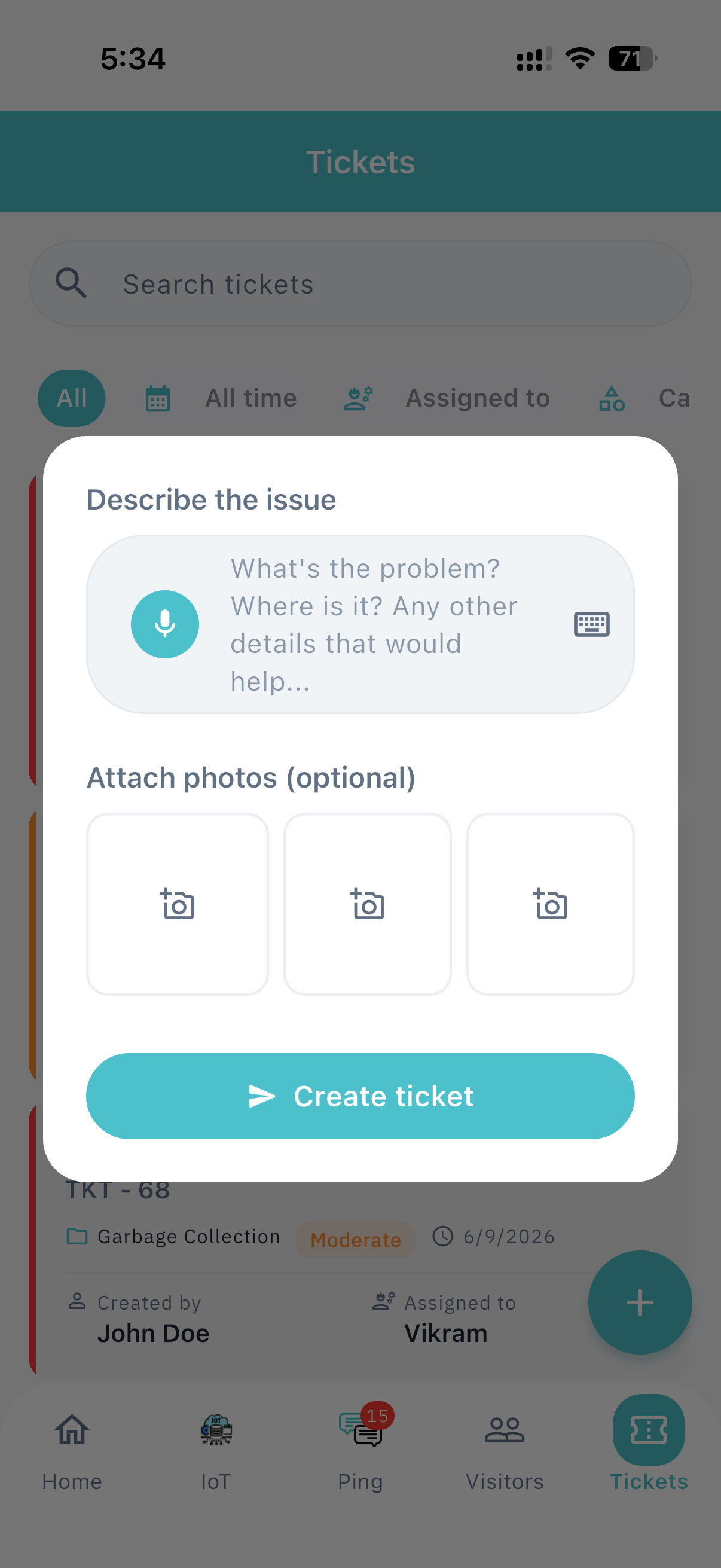
A resident, employee, or guard describes the issue — or a sensor opens it. Voice, text, or a short form. Photos optional at intake.
-
Step 02
Attach context, then let Orbit recommend
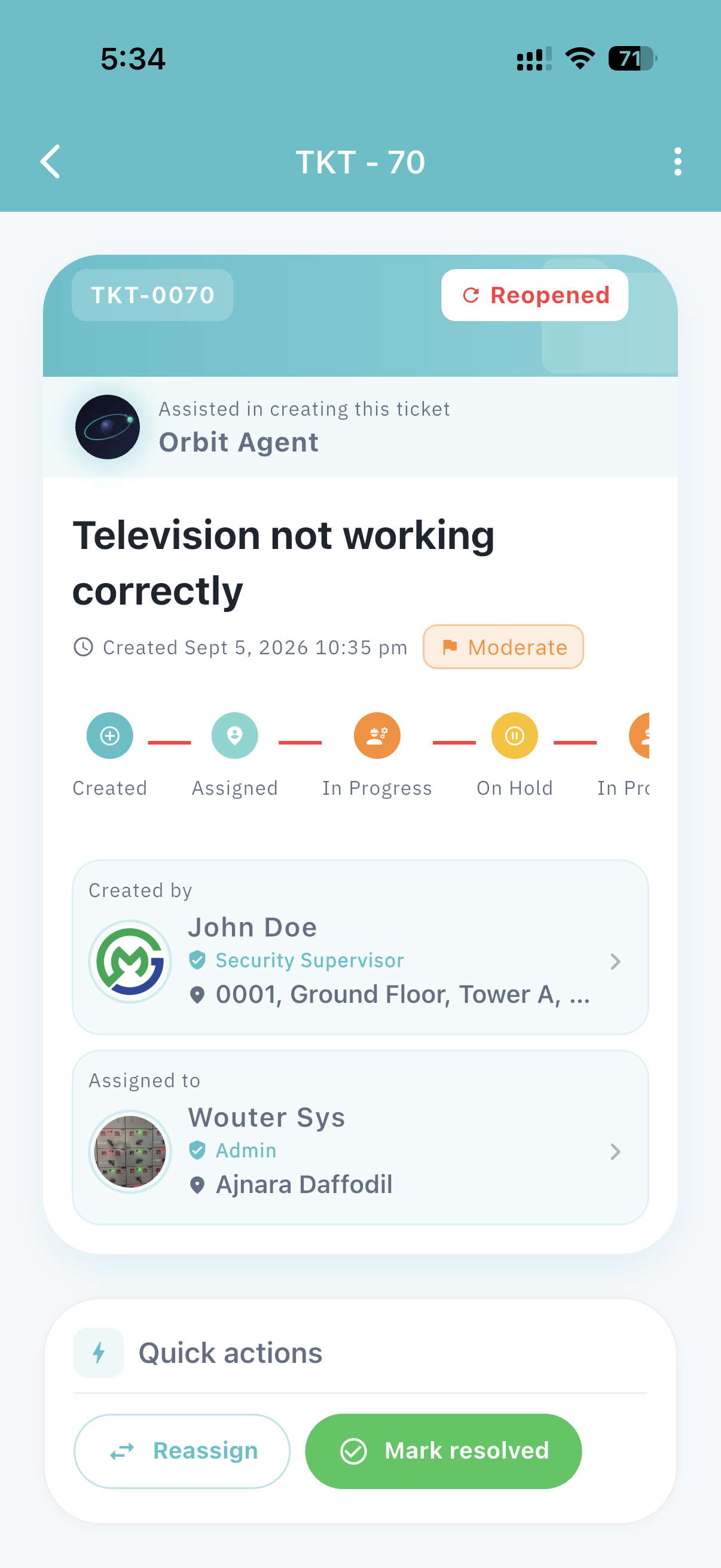
Admin or the system adds the asset, location, and past failures. Orbit suggests priority and assignee.
-
Step 03
Act and verify
The technician works the ticket on mobile, attaches evidence, and closes. The manager sees the outcome. The system keeps the history.
Different from WhatsApp and classic CMMS
The ticket carries the asset, past failures, AMC, SLA, parts, and evidence. It is not Assigned → Closed only.
A ticket is a job, not a mailbox. Orbit keeps the conversation, the assignment, and the evidence together so the same complaint is not re-raised in a WhatsApp group tomorrow.